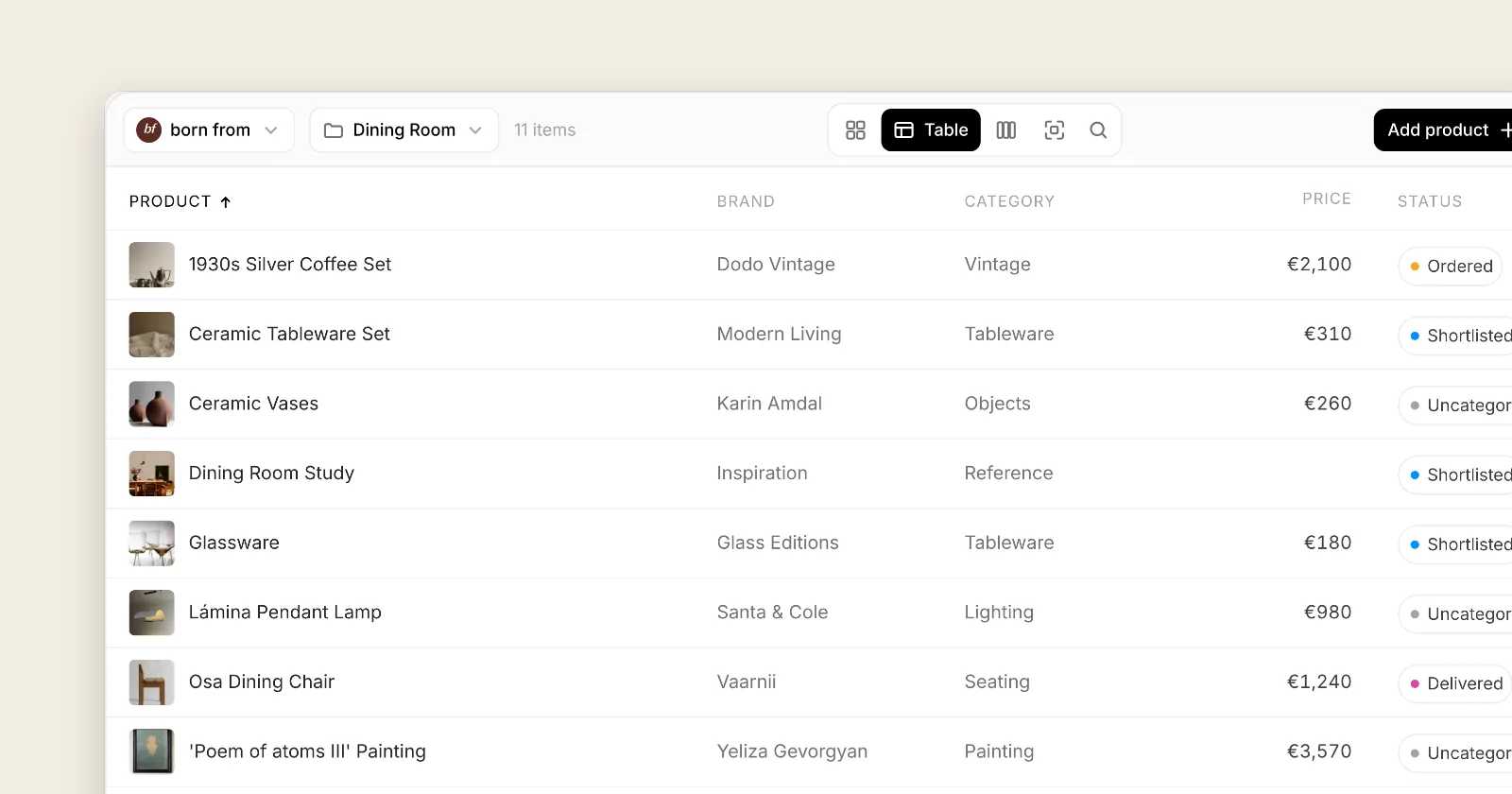
How to build an FF&E schedule
Build an FF&E schedule room by room, with columns, status, lead times, tax, and a clean handoff. Free CSV template, plus product records you can export.
The Aalto teamUpdated
An FF&E schedule is the list that turns product choices into something a client, contractor, or purchasing contact can act on. If you are still rebuilding that list from screenshots and half-filled Excel tabs, this guide walks through a cleaner way to build it.
You do not need a full studio operating system to get this right. You need clear columns, room context, a status for every line, and a source you can re-check later.
What an FF&E schedule is for
FF&E means furniture, fixtures, and equipment. In studio practice, the schedule is usually the structured list of those products for a project, with room, product, supplier, quantity, price, lead time, and status.
People outside the design review loop still expect that document. Your product board is where you decide. The schedule is how you hand off.
For a short definition, see What is FF&E in interior design?. For a free starter sheet, use the FF&E schedule template.
Columns to lock before you start
Agree the minimum fields with your team once, then reuse them.
- Room and item number
- Product name, brand, supplier, SKU
- Category and colour or finish
- Dimensions (and weight when it matters for access)
- Quantity, unit price, line total
- Lead time and availability
- Source URL
- Status and notes
If you work in the UK, EU, or US, decide early whether prices are ex tax or inc tax, and how VAT, GST, or sales tax will appear. Tax columns belong in the schedule, not in a side note you forget to send. See the guides for UK VAT, EU VAT and US sales tax.
Build it in five steps
1. Open one active project, not every project
Pick one active job. Name the client, site, and internal reference so the schedule never floats without context. Optional style and budget notes help later shortlists, but they are not a substitute for product records.
2. Capture products with a source, not a screenshot alone
When you find a pendant or sofa on a supplier site, save the product with:
- Name and brand
- Price at the moment you capture it
- Specs available on the page
- The source URL
If you only paste a name into a sheet, you will rebuild the row later. Aalto can save products from most supplier pages with name, brand, price, image, and source URL. Lead time is a built-in field, and you can add fields your studio needs (quantity, supplier detail, finish code). Keep rejected options out of the set you plan to export.
3. Organise by room, then number every line
Work room by room. Give each item a stable number you can quote in emails and on drawings. A long master list without room context is hard to review with a client.
Status matters. Many studios use a simple path of proposed or saved, shortlisted, ordered, delivered and installed. Whatever labels you choose, use the same ones on every project.
4. Review lead times and tax before you present
Sort by lead time before a client meeting. Anything that threatens the install date should sit in the same conversation as the price. See Furniture lead times.
Check tax totals for your market. In Aalto, VAT, GST, and sales tax columns work on Free and Pro. Set the workspace tax region, then show ex tax and inc tax where your client needs them.
5. Share for review, then export for handoff
Share a read-only link when you want feedback on selections. Export when someone needs a file.
- CSV export works on Free and Pro
- Excel and PDF exports are on Pro
- Plan details live on aalto.app/pricing
Do not strip source URLs on export. They are the fastest way to re-check price or stock months later. For the field map, see Export FF&E schedule.
Aalto does not replace procurement, purchase orders, or a full practice OS. If you need those, keep the specialist tool you already use. Aalto is for product sourcing, product boards, and schedule export.
Spreadsheet or dedicated workspace?
Excel and Google Sheets are fine for formulas and one-off budgets. They get fragile when the same workbook is also a scrapbook, a product library, a review board, and a handoff file.
Move the fragile layer first. That's product identity, room context, status and export. Keep your budget sheet if it still works. For an honest comparison, see Excel vs Aalto.
A one-room pilot
- Choose one room with enough variety.
- Agree the column set above.
- Save the next five products with source and price at save.
- Build a room view and run a short QA pass (missing SKUs, blank lead times, broken links).
- Export once. Decide whether to expand beyond the test room.
Frequently asked questions
What should an FF&E schedule include?
At minimum, include room, item number, product name, brand, supplier, SKU, dimensions, quantity, unit price, line total, lead time, status, and source URL. Add tax columns for UK, EU, or US clients as needed.
Is an FF&E schedule the same as a finishes schedule?
No. Finishes schedules usually cover fixed surfaces (paint, stone, flooring, wall coverings). FF&E covers the loose and specified products that furnish the space. Cross-link both. Do not merge them into one unclear sheet.
Can I start from a template?
Yes. Download the free FF&E schedule CSV template. It opens in Excel, Numbers, and Google Sheets.
Does Aalto update prices automatically?
Aalto records the price when you save. On an active project it rechecks shortlisted and ordered pieces each week and records any change. Some supplier sites cannot be read automatically, so refresh a product before you quote if the price matters.
Is tax available on the free plan?
Yes. VAT, GST, and sales tax work on Free and Pro. CSV exports include tax columns on any plan. Excel and PDF exports are on Pro. See pricing.